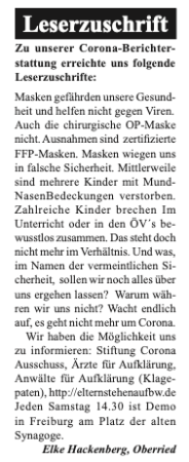
Ich bin einigermaßen entsetzt über einen Leserbrief in der Wochenzeitung „Dreisamtäler“: Darin werden völlig unwiedersprochen eindeutige Fakenews und falsche Inhalte wiedergegeben. Leserbriefe sollen die Meinung der Leserschaft wiedergeben. Aber ebenfalls sollten Leserbriefe nicht zur Verbreitung von Fake News dienen. Deshalb habe ich folgenden Leserbrief verfasst:
Im Leserbrief von Frau Hackenberg sind zahlreiche Falschbehauptungen enthalten, die ich an dieser Stelle richtig stellen möchte. Im Gegensatz zu ihren Aussagen hilft das Tragen von Alltagsmasken gegen die Infektion mit SARS-COV-2 Viren und reduziert auch die Schwere der Krankheit. Völlig haltlos ist die Behauptung es gäbe mehrere Kinder, die an oder mit Mund Nasen Bedeckung verstorben seien. Zahlreiche Medien sind diesen Behauptungen der „Coronarebellen“ oder Bodo Schiffmanns nachgegangen, es gibt keine Bestätigung. Teilweise mußten sogar Bestatter auf Facebook bitten, diese Behauptungen zu unterlassen. Das zu verbreiten ist ein zynisches Spiel mit der Sorge um unsere Kinder. Diese und andere Gerüchte untergraben den Kampf gegen ein gefährliche, potentiell tödliche Infektionskrankheit.
Ohne das sie es groß bekannt gemacht haben, haben die netten Leute vom Umweltcampus Birkenfeld gleich ein paar neue Blöcke für die Octopus Platine bereitgestellt.
Recht unspektakulär aber nützlich, sind die beiden C code Blöcke. Mit diesen kann man freien, eigenen C Code einfügen, bereits im Ardublockly und nicht erst in der Arduino IDE. Die finden sich bei Kontrollstrukturen.
Viel spektakulärer ist der CO2-Server Block. Er stellt auf dem Octopus einen kleinen Server zur Verfügung, der eine kleine Ampel darstellt. Diese kann mit jedem Gerät, das sich in ein WLAN einwählen kann und Webseiten darstellen, ausgelesen werden.
Ich habe sie mit dem AcessPoint Block kombiniert. Nun spannt der Octopus sein eigenes WLAN auf und man kann auf der Adresse http://192.168.4.1 auf die Website zugreifen. Die Werte die er unter Value empfängt, etwa aus dem SCD30 Block werden zum einen als Wert dargestellt, zum anderen lassen sich auch „Limits“ Schwellen eintragen, ab denen das Smiley gelb und rot wird. Die Adresse wird beim hochfahren im Seriellmonitor angezeigt. Zugriff auf diesen im Ardublock Übersicht Button „Seriellmonitor“
Bei Sensor 1 und Value 1 lassen sich dann einfach weitere Sensoren hinzufügen. Das praktische ist, das sich so ohne eine zusätzliche Anzeige, mit einem Mobilgerät die Werte auslesen lassen. Wodurch man nochmal den Preis senken kann (nicht jede Platine hat ja Neopixel dran).
Man kann die Daten für den WLAN Acesspoint etwa in einen QR Code eingeben, dann können es die Anwesenden gleich abscannen. Und ggf. einen zweiten QR Code mit dem Link.
SSID: MeinOctiWLAN mit Passwort: MeinOctiWLAN zum scannen
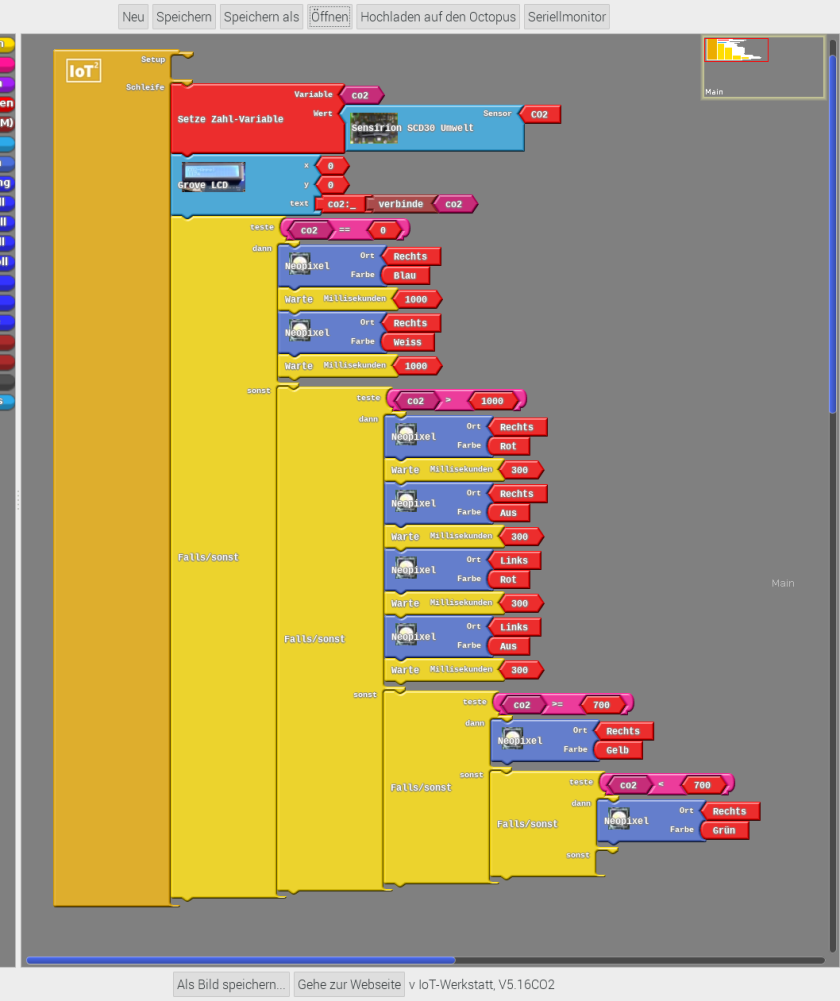
Lange habe ich mich gesträubt einen fertigen Code bzw. ein Bild eines fertigen Ardublock Codes zu veröffentlichen für die CO2, so ist ja ein Teil des Spaßes an den Workshops selbst mithilfe der Fallunterscheidungen (wenn/dann/sonst) herauszufinden, wie man sich so eine Ampel baut. Aber im letzten Bastelworkshop hat ein Teilnehmer den folgenden coolen Code für einen CO2 Ampel auf Octopus Platinen Basis entwickelt:
Was macht der Code: Ganz oben sehen wir die Zahl-Variabel, die bezeichnet die Werte aus dem CO2 Sensor. Als erstes wird der Wert im LCD Display angezeigt. So weit unspektakulär. Dann aber wird es spannend.
Pi & Octopus ?
Die erste Falls/Sonst Unterscheidung testet ob der CO2 Sensor überhaupt einen sinnvollen Wert liefert. Wenn er aber 0 ausgibt, dann blinkt der rechte Neopixel blau/weiß. Die nächsten beiden Fall/Sonst Unterscheidungen arbeiten dann wie immer bei den Ampeln: Zunächst wird geprüft ob der Wert größer ist als 1000 ppm CO2. Wenn ja dann blinkt der rechte Neopixel rot. Wenn nein dann bei über 700 leuchtet sie gelb und bei unter 700 leuchtet sie grün.
Blynk is another way of sending and visualising data, from the Octopus, besides using Thingsspeak. To use Blynk, one needs to register with Blynk and download the Blynk app (available on iOS and Android).
Set up a remote sensing device on Blynk
To set up a data transmitting device on Blynk, one needs to do the following:
From the Blynk app : – Open the Blynk app on your smartphone. – Click on “new project”. – Choose “esp8266” for the “choose device” question. – Wait for the “Auth Token” email that Blynk has sent.
(then) In ArduBlocks : – In the Setup part of your ArduBlocks sketch, add aWLAN block and a Blynk-Cloud block. – In the WLAN block : specify the name of your wifi network and the password. – In the Blynk-Cloud block : the Copy the Auth Token from the Blynk email, and paste it into the API-Key part of the ArduBlocks Blynk-Cloud block.
As one might not always have an Octopus microcontroller at hand, people have asked me how to build a CO2Ampel – CO2 traffic light warning gadget – with a different microcontroller. Thankfully, such a device was recently assembled at Chaos Computer Club Freiburg.
To keep things inexpensive, we’re skipping the NeoPixel LED of the other tutorial, in this tutorial. Thus parts could be obtained for around 55 EUR. Later, we’ll cover how to connect the measuring device described here, to various displays . Also, those interested in finding further tips and information, can find more information in the Octopus section of this blog. (This post is for the most part identical with the CO2 Messen mit dem Octopus tutorial, also on this blog.)
Parts
I have provided links to the Mouser Onlineshop and to Tindie. You can also find the parts elsewhere, and my links aren’t affiliate links.
Node MCU (microcontroller, controlling the other elements ), via Amazon or Mouser.
CO2 sensor SCD30 – these are available with different interfaces. Eg. With a Grove connector – although often sold out – as well as without. In the case of the CO2 sensors without a grove connector, one needs to solder or otherwise connect it to the microcontroller. Slightly cumbersome but manageable. (Digikey from 53 EUR, RS Online from 72 EUR, Mouser around 50 EUR – at time of writing these were sold out, but new ones are orderd)
LCD panel – To display the data from the CO2 sensor. There are several variants, also with Grove connectors. From 6 EUR. from Mouser.
A power source – Likely you already have one – a USB charger. Just make sure you have a Micro-USB cable. Powerbanks are an alternative, especially if you want to carry the device around.
I2C Hub – a hub connecting several Grove connector cables. Grove connector cable – 2.5 EUR by Mouser.
A case – There are many ideas around. From Ikea picture frames, to Bird houses.
A Data ready USB cable – You probably have one at home, but may have to try several USB cables before you find one that can transmit data as well as power. Please note, quite often the USB cables one gets with various bits of electronics can only carry power. So it makes sense to try different USB cables if USB cable one doesn’t work.
Programming
To program Arduino code with visual programming (Ardu)blocks, we need to modify the Ardunio IDE code editor a bit. (For those that prefer text-code, you’ll find the produced Ardublocks code, in text form, at the end of this tutorial).
Windows: download the zip file with the ‘blocky’ Arduino IDE and then install the relevant hardware driver software. Install the Arduino into a very short File tree, et. C:/iotw. You may also have to take care if you have another Arduino Version already installed. Pay attention which do you start. Start by double clicking on the „IOTWerkstatt.bat“ file.
Mac OS: this is a bit more complicated compared to Windows, but accomplishable using these instructions (in German, again), or the ones below. Here too, you need to install the relevant hardware driver software, and download the special Arduino IDE. This is done as follows:
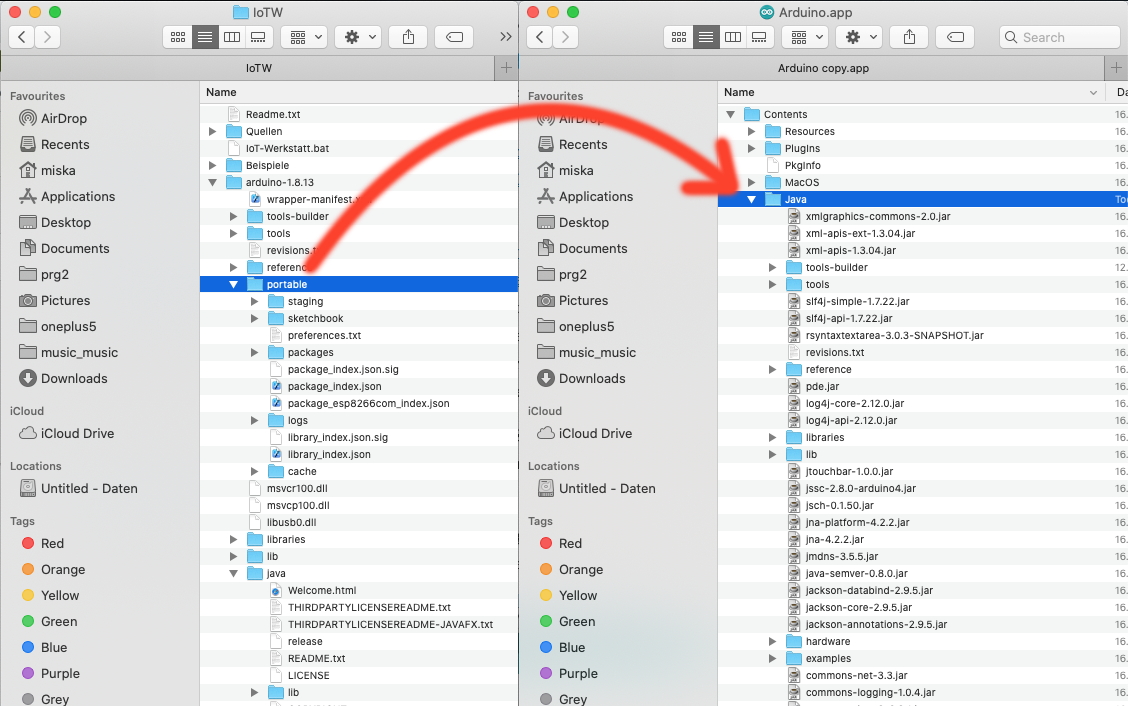
Following the installation of the Arduino IDE, right-click on the Arduino IDE icon, and select “Show package content” from the menu. This shows the files that make up the Arduino IDE.
Open the “Contents” folder of the just-opened Aruduino package.
Open the downloaded IoTW.zip file.
Drag the “Portable” folder (of the expanded IoTW.zip file ) into the “Java” folder of the expanded Arduino IDE files.
Now open the Arduino IDE.
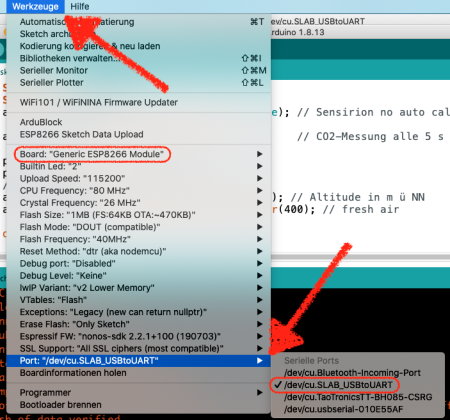
Open the “Tools” menu and go to Port submenu, and select “Dev/cu.SLAB_USBtoUART” option, to select the right port.
Open the “Tools” menu, as before, and now open the “Board” submenu, and select the “Generic ESP8266 Module”, as our board.
Cabling
The ESP9266 is cheap and can be used as the microcontroller for the CO2 Traffic lights.
Connect yellow on the D1, white on the D2, black on the GND, and red on the 3V. The cables connect with the Node MCU as shown in the table below. Now we need to solder them into place.
Node MCU pin
I2C / Grove Cable
3.3 V
red
GND
black
D1
yellow / SCL
D2
white / SDA
Here and now is a good time to solder the (Grove) cables to the Node MCU. Then we can do fun things like connect a Grove LCD and a SCD30 CO2 sensor to the Node NCU, via a I2C hub. As the grove Cables have preset colours, this should be simple.
Ich will ja weniger über die wöchentlichen Kundgebungen der Coronleugner von Querdenken 761 in Freiburg schreiben. Darum hier mal so ein Aufwasch über das was die letzte Wache insgesammt so war. Auf der sonntäglichen Kundgebung war eine Dame – in gelb, ohne Schuhe – die einen Hitlergruß zeigte und Heil Hitler brüllte. Dafür wurde sie dann mitgenommen auf das Revier Nord.
Noch ein Nachtrag zu den "Attesten": Die meisten haben das, was ich auch habe. Eine, Zitat meiner Hausärztin, "Empfehlung" bzw Information. Ein Attest kann dieser nämlich gar nicht ausstellen, das muss ein:e Spezialist:in (zB Pneumolog:in) tun.
Sonst war die Musik weniger schrecklich als sonst, 200 Leute da und die Polizei hat darauf verzichtet die Personalien, der Menschen aufzuschreiben, die ohne Maske kommen. Obwohl dies nicht nur gegen die Demoauflagen verstößt, sondern auch gegen die allgemeine Maskenpflicht in der Innenstadt.
Dann mal ein kleiner Bericht aus Loriot in Aktion: die #Maskengegner wollen in Geschäfen ohne Maske einkaufen gehen. Zunächst mal ca 40 min Sammeln der 15 Personen inklusive Dubravko #Mandic und Robert Hageman von der #noAfD auf dem Platz der alten Synagoge. Mandic ohne Maske pic.twitter.com/qPnLYFXgjw
Am Samstag als Dubravko Mandic in der Stadt einkaufen war ohne Maske und ca 15 Leute, darunter etwa 5 Teenager, wurden zumindest noch die Personalien kontrolliert. Allerdings lief die Gruppe, inklusive der Kinder dann doch durch die Stadt und verteilte Flyer. Koordiniert wird das ganze über Telegramgruppen.
Ein guter Thread und Bericht vom Geschehen ist auch bei Chris Köpper zu finden:
Neuer Redner „Mark“. Er sagt dieser Schwachsinn sei nicht mehr zu ertragen. Alles was Spaß macht werde uns genommen. Er ruft das Volk dazu auf aufzustehen. Er beschwört den Mythos die Finanz hätte die Kontrolle über alles
Obwohl die Fälle nach wievor exponentiell ansteigen, hält das natürlich die ein oder andere Gastro-Einrichtung nicht davon ab, jetzt nochmal eine „ab morgen ist alles verboten lassen wir es noch mal krachen“ Party zu schmeissen.
So wie die Radiosprecherin des @badenfm, die verkündet, dass sie an diesem Wochenende nicht zu Hause kocht, sondern noch mal essen geht, bevor es nicht mehr geht… Sich nichts vorschreiben lassen wollen, dann aber so verantwortungslos leben, dass Vorschriften notwendig werden.
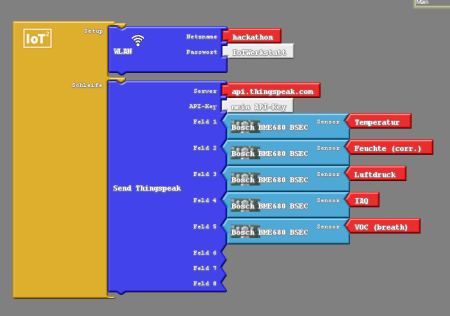
Now it’s time to have a look at sending the data the Octopus microcontroller has measured, through its own sensors or attached ones, over the net. For this tutorial, we’ll use the Octopus microcontroller’s on-board Bosch BME680 sensor.
Note for Mac and Pi users: Unfortunately, there’s an incompatibility with the Mac OS compiler and the Bosch BME680 BEC driver. Things fail in the compilation stage. A workaround is to read a single BME680 value at a time, or use a different BME680 driver, without BSEC. Sometimes it works, just try or use a windows system
The BME680 BSEC is a great sensor, which can measure:
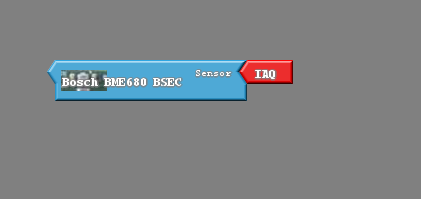
IAQ – Air Quality Index (AQI). AQI values between 0-100 means the air is relatively ok. AQI values between 100 and 200 means it’s a good idea to ventilate regularly. Values above 200 indicate one needs to ventilate urgently.
The AQI value is calculated based on several factors. Thankfully we don’t need to worry about performing the calculations oursleves. The BME680 BSEC library does the complex calculations, and simply delivers us an AQI number. Simply select things relevan in the BSEC Block (the red arrow) and get the AQI value.
Thingsspeak Block with Bosch BME680 SEC in ArduBlocks
Immer wieder gibt es Fragen: Kann ich die spezielle ArduBlock Umgebung auch auf dem Raspberry Pi nutzen? Die gute Nachricht: Ja es geht. Michael Mattern vom Innovationslabor Digitalisierung (INNODIG), dem Makerspace am Umweltcampus Birkenfeld hat eine spezielle Version der Arduino IDE zusammengestellt. Gerade wenn wir eine CO2 Ampelbauen wollen, kann uns das helfen.
Was brauche ich?
Raspberry Pi 4 (ich nehme am ehesten den Großen mit 8GB, der mit 4GB sollte aber auch tun). Gegebenenfalls sollte man auch ein Netzteil und Gehäuse gleich mitbestellen. Ein normales Handynetzteil reicht in der Regel nicht aus.
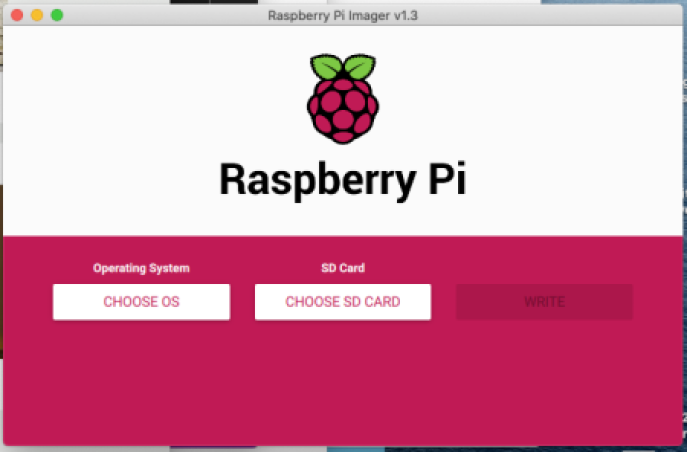
Als erstes Laden wir von Raspberry.org den Raspberry Raspberry Pi Imager herunter. Das ist ein kleines aber schönes Programm, in dem wir schon alle notwendigen Betriebssysteme angeboten bekommen.
Wir wählen Rasypberry Pi Os (32 Bit) aus
Der Imager ist total komfortabel. Sobald wir im gesagt haben auf welche SD Karte wir das „flashen“ sollen, schreibt er das Betriebsystem auf diese. Beim ersten Mal muß er die ca 1 GB nochmal runterladen, das kann also ein wenig dauern.
Da wir den Pi nicht „headless“ betreiben wollen, sondern mit Bildschirm und Tastatur und Maus, brauchen wir auch keine weiteren Einstellungen zu ändern. Was wir einstellen, können wir direkt am Pi über dessen grafische Benutzeroberfläche. Also Pi anschließen und starten. Der erste Start-Up dauert dann etwas länger.










Du muss angemeldet sein, um einen Kommentar zu veröffentlichen.